
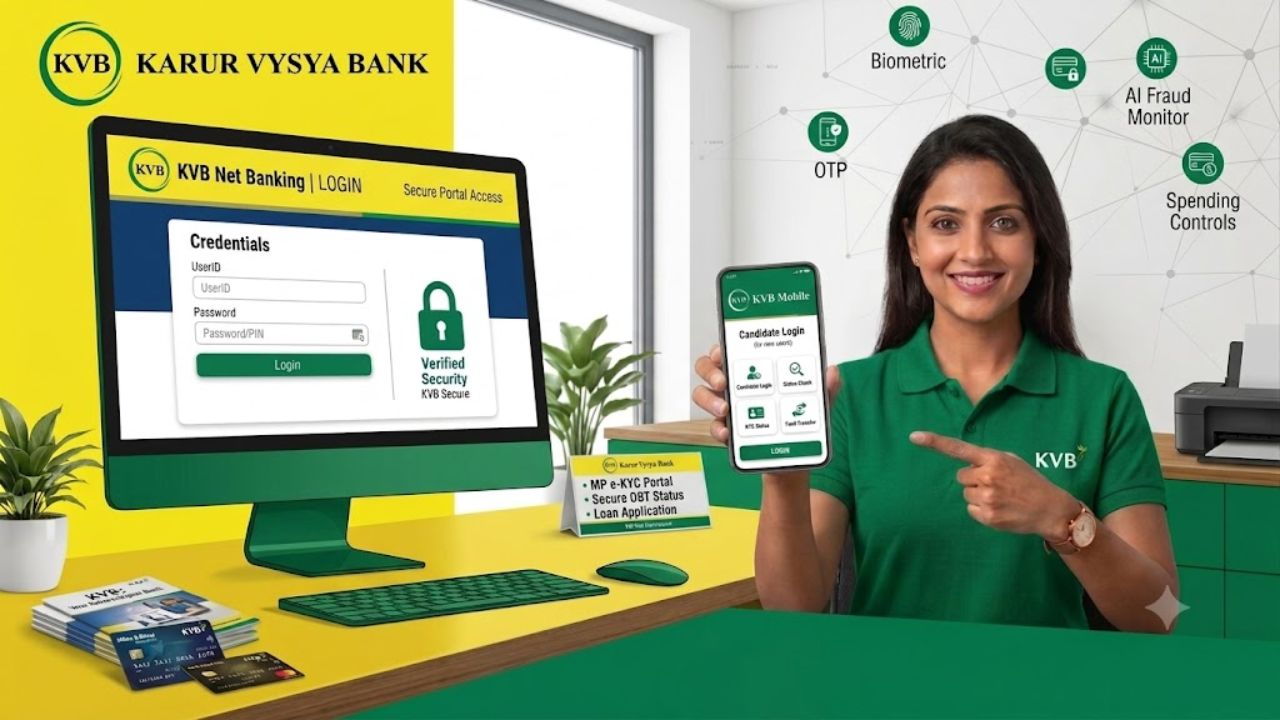
Karur Vysya Bank (KVB) Net Banking is a convenient way to manage your bank account online without visiting a branch. Once Internet Banking is activated, customers can check account balances, download statements, transfer money, view deposits and loans, and use several other banking services from a computer or mobile device.
In this guide, you will learn about Karur Vysya Bank Net Banking registration, activation, first-time login, User ID unlock, password reset, fund transfer and other online banking services.
⭐ What Is Karur Vysya Bank Net Banking?
Karur Vysya Bank Net Banking is an online banking facility that allows eligible KVB customers to access their banking services through the internet.
Instead of visiting the bank for every small requirement, customers can use Internet Banking to perform many routine activities online. The service is designed for convenient access and includes security measures such as password-based login and additional verification.
It can be useful for individual customers as well as eligible business and other account holders, depending on the banking relationship and services available on the account.
Main Things You Can Do Through KVB Net Banking
Some commonly available services include:
- Check account balance
- View account details
- Download account statements
- Transfer money
- Use NEFT/RTGS services
- Check term deposits
- View loan information
- Check cheque status
- Stop cheque payments
- View forex rates
- Receive e-statements
- Access banking messages and notifications
The exact services available may depend on the account and the facilities enabled by the bank.
⭐ How to Activate Karur Vysya Bank Net Banking?
If you have not activated KVB Internet Banking yet, you can complete the registration process through the bank’s Internet Banking facility.
Keep your registered mobile number and other required account details ready before starting the process.
Karur Vysya Bank Net Banking Registration Process
Step 1: Visit the official Karur Vysya Bank website and open the Internet Banking option from the Login menu.
Step 2: Look for the Safe and Secure Banking section and select Continue to Login.
Step 3: On the login page, find the Register Now option and click on it.
Step 4: Read the displayed terms and conditions carefully and select I Agree to continue.
Step 5: Enter the required customer information in the registration form. Make sure the details are entered correctly.
Step 6: Create your preferred User ID and password according to the requirements shown on the portal.
Step 7: Enter the OTP received on your registered contact details for verification.
Step 8: Check all the information once again and click Submit.
After successful registration and verification, your KVB Net Banking facility can be used for online banking services.
Important: The options and registration procedure shown on the KVB website may change from time to time. Always follow the instructions displayed on the current official portal.
⭐ How to Login to Karur Vysya Bank Net Banking?
After completing registration, you can use your User ID and password to access KVB Internet Banking.
KVB Net Banking Login Process
Step 1: Open the official Karur Vysya Bank website.
Step 2: Select Internet Banking from the Login menu.
Step 3: Click Continue to Login under the Safe and Secure Banking section.
Step 4: The Internet Banking login page will appear. Enter your User ID.
Step 5: Enter your Password in the required field.
Step 6: Enter the CAPTCHA displayed on the screen.
Step 7: Click the Login button.
Step 8: After successful verification, you will be taken to your Internet Banking account.
If you have forgotten your User ID or password, the login page also provides recovery options for eligible customers.
KVB Net Banking: Registration, Login, Activation, User ID Unlock, Password Reset & Services
First-Time Login Tips
When logging in for the first time, make sure:
- Your User ID is entered correctly.
- The password is typed carefully.
- CAPTCHA is entered correctly.
- Your registered mobile number is active.
- You are using the official banking website.
- You do not share your login details with anyone.
For additional security, always log out after completing your banking work, especially when using a shared computer.
⭐ Karur Vysya Bank Net Banking User ID Unlock
If your Internet Banking User ID becomes locked or you cannot access it, KVB provides different ways to unlock it.
The source information mentions four methods:
Unlock User ID Through SMS
You can use the registered mobile number and send the prescribed SMS format to the number provided by the bank.
The source specifies the format as:
KVBNET Customer ID UNLOCK
For example, if the Customer ID is 112233, the SMS would be:
KVBNET 112233 UNLOCK
SMS charges may apply according to your mobile plan.
Unlock Through Email
The source also mentions sending an acknowledgement email from your registered email address to the bank’s customer-support email address.
After verification, the bank may process the request and send confirmation to the registered email address.
Unlock Through IVR
Another option mentioned is the bank’s IVR service. Customers can call the prescribed helpline and follow the automated instructions for User ID-related assistance.
Unlock Using Security Questions
If security questions were previously registered on your Internet Banking profile, you may be able to select the Unlock User ID option on the login page and answer the questions for verification.
⭐ How to Reset Karur Vysya Bank Net Banking Password?
If you have forgotten your KVB Internet Banking password, you can use the password recovery options provided by the bank.
The available method may depend on your account and the recovery facilities registered with your Internet Banking profile.
Reset Password Using Security Questions
If you have already registered security questions, select the Forgot/Reset Password option on the login page and follow the instructions.
SBI Corporate Net Banking: Registration, Login, Eligibility, Services, Charges and Customer Care
You may need to answer your registered security questions before the password can be reset.
Reset Password Through Customer Support
The source also mentions contacting the KVB helpdesk for password-related assistance. The bank may follow a verification process before issuing or resetting the password.
Reset Password Through Email
Eligible customers may also contact the bank through their registered email address for password-related assistance.
Reset Password by Visiting the Branch
If online recovery is not possible, you may need to contact or visit your home branch and submit the required request.
The bank may then process the request after completing the necessary verification.
⭐ Karur Vysya Bank Net Banking Services
KVB Internet Banking provides several services that can help customers manage their accounts online.
Account Details and Balance
You can view your CASA account information and check available balances through the Internet Banking facility.
Download Account Statement
Customers can access account statements electronically. E-statements can be useful for maintaining personal records and checking previous transactions.
Fund Transfer
KVB Net Banking supports fund transfer facilities, including transfers within KVB and applicable transfers to other banks through services such as NEFT and RTGS.
If you already use another bank’s Internet Banking, you can also read our guides on SBI Internet Banking and Axis Internet Banking to understand their registration and online banking features.
Term Deposit Details
Customers can check information related to their term deposits, including maturity-related details and interest information where available.
Loan Information
Internet Banking can also provide details related to eligible loan accounts, including due dates and upcoming instalment information.
Customer Service Options
Various customer service facilities may be available, such as cheque status, stop-payment requests, forex information, banking bulletins and mailbox services.
E-Statements
Customers can receive account statements electronically at the registered email address. The source mentions daily, weekly and monthly statement options.
⭐ How to Transfer Money Through KVB Net Banking?
Fund transfer is one of the most useful features of Internet Banking.
The general process is:
Step 1: Login to your KVB Net Banking account.
Step 2: Open the fund transfer or payments section.
Step 3: Select the appropriate transfer method.
Step 4: Enter the beneficiary details as required.
Step 5: Enter the amount you want to transfer.
Step 6: Carefully check the beneficiary account number, IFSC and amount.
Step 7: Complete the required authentication or OTP verification.
Step 8: Submit the transaction.
Step 9: Save the transaction reference number for future use.
Before confirming a transfer, always check the beneficiary details carefully. A wrong account number or other incorrect information can create problems in recovering a transaction.
MSSC HRMS: Complete Guide to Login, Salary Slip, Leave, Employee Details, Password Reset & Services
⭐ How to Check KVB Account Statement Online?
You can use Internet Banking to access your account information and download statements where the facility is available.
After logging in:
- Open the My Accounts section.
- Select the required account.
- Choose the statement or transaction-history option.
- Select the required date range.
- View the transactions.
- Download or save the statement if the option is available.
An electronic statement can be useful when you need a record of transactions for personal, business or other financial purposes.
⭐ What to Do If KVB Net Banking Login Is Not Working?
Sometimes you may be unable to log in even when your Internet Banking account is active.
Try these basic checks:
- Check your User ID.
- Re-enter your password carefully.
- Check the CAPTCHA.
- Make sure your internet connection is working.
- Try refreshing the page.
- Clear temporary browser data if necessary.
- Try another supported browser.
- Check whether the bank’s website is temporarily unavailable.
- Use the User ID unlock or password recovery option if required.
If the problem continues, contact the bank through its official customer-support channel.
⭐ What to Do If KVB Net Banking Payment Fails?
If an online transaction fails, first check whether the amount has been deducted from your account.
If money has not been deducted, you can check the transaction details and try again when appropriate.
If the amount has been deducted but the transaction is not showing as successful, avoid making another payment immediately. Note down the transaction reference and check the transaction status.
If the issue remains unresolved, contact KVB through the official support channel and provide the relevant transaction details.
⭐ Is Karur Vysya Bank Net Banking Safe?
Internet Banking uses security measures to protect customer accounts. The source specifically mentions password-based security along with additional verification such as OTP or a token-based mechanism.
However, customers should also take their own security precautions.
Follow These Safety Tips
- Never share your Internet Banking password.
- Never disclose an OTP to anyone.
- Do not share your User ID unnecessarily.
- Avoid clicking suspicious banking links received through messages or email.
- Always check the website address before logging in.
- Do not use unknown computers for sensitive banking transactions.
- Log out after completing your banking work.
- Keep your registered mobile number secure.
- Do not install unknown apps claiming to provide banking assistance.
A genuine bank representative should not ask you to disclose your OTP, PIN or Internet Banking password.
⭐ Advantages of Karur Vysya Bank Net Banking
KVB Internet Banking can make everyday banking more convenient.
Banking From Anywhere
You can access many banking services online without visiting a branch for every routine requirement.
24×7 Convenience
Online banking allows customers to manage many account-related activities outside normal branch working hours.
Easy Fund Transfers
Customers can use available online transfer facilities for sending money to eligible accounts.
Digital Statements
Electronic statements make it easier to keep track of transactions and maintain records.
Quick Access to Account Information
Instead of visiting a branch to check basic information, customers can access many details online.
Reduced Paperwork
Digital banking reduces the need for physical documents for several routine banking activities.
⭐ Who Can Use KVB Net Banking?
Karur Vysya Bank Net Banking is available to eligible KVB customers. The source states that the service can be used by individuals, families, partnership firms and companies, subject to the applicable banking arrangements.
The exact registration process and services can vary depending on the type of account and customer relationship.
⭐ Important Things to Keep Ready for Net Banking Registration
Before beginning registration, it is useful to keep the following information available:
- KVB customer/account details
- Registered mobile number
- Registered email address, where applicable
- Required identification details
- Access to OTP verification
- A secure device and internet connection
Make sure your registered contact details are correct so that you can complete the verification process successfully.
⭐ KVB Net Banking vs Mobile Banking
Both Internet Banking and mobile banking provide digital banking facilities, but the method of access is different.
| Feature | KVB Net Banking | Mobile Banking |
|---|---|---|
| Access | Web browser | Mobile application |
| Device | Computer, laptop or supported mobile browser | Smartphone |
| Account services | Available online banking services | Available app-based services |
| Fund transfer | Available for eligible users | Available for eligible users |
| Statements | Available where supported | Available where supported |
| Login security | Password and additional verification | App security and additional verification |
The better option depends on how you prefer to manage your banking activities.
⭐ Final Words
Karur Vysya Bank Net Banking makes it easier for customers to manage many everyday banking requirements online. From checking account information and downloading statements to transferring funds and viewing deposits or loan details, several services can be accessed without visiting a branch.
If you are using KVB Internet Banking for the first time, complete the registration carefully and keep your login credentials secure. In case of a forgotten password, locked User ID or failed transaction, use the recovery and support options provided by the bank.
IFMS Uttarakhand: Complete Guide to Portal, HRMS, Salary, Pension, UKosh, Login & Online Services
For more banking, government scheme and online service guides, visit Sarkari Bakery.
⭐ FAQs
Based on Google's Helpful Content System, this article emphasizes user value, transparency, and accuracy. It incorporates principles of E-E-A-T (Experience, Expertise, Authoritativeness, Trustworthiness).
Why Choose Sarkari Bakery?
Reliable guidance to help you understand government schemes, online applications and essential digital services.
Official Information
Information presented with relevant official sources wherever available.
Step-by-Step Guides
Clear instructions to understand application procedures and requirements.
Regular Updates
Helpful updates and guidance when information changes or becomes available.
People-First Content
Practical explanations designed around the questions citizens commonly ask.
GOOGLE BUSINESS PROFILE
Explore Our Profile
Visit our Google Business Profile to check the latest available business information and customer reviews.
View Google ReviewsPlease check Google for the current rating and available reviews.
Pingback: SBI Corporate Net Banking: Registration, Login, Eligibility, Services, Charges and Customer Care - Sarkari Bakery
Pingback: KVB Net Banking: Registration, Login, Activation, User ID Unlock, Password Reset & Services - Sarkari Bakery
Pingback: UIIC Portal: Login, Registration, Renewal & Online Services