
Every Indian who holds an Aadhaar number should know not just what their Aadhaar contains, but also how often and when those details were changed. UIDAI records every update made to an Aadhaar — name, address, mobile number, biometrics, and even authentication events. This record is called your Aadhaar Update History, and it helps you track changes, detect unauthorized edits, and keep your identity secure.
🔍 What is Aadhaar Update History?
Aadhaar Update History is a chronological log maintained by UIDAI that lists every update request linked to your Aadhaar number. It shows:
- What data was updated (demographic, biometric, mobile, etc.)
- When the update was requested and processed
- Where the update was made (online portal or an enrolment/update centre)
- URN (Update Request Number) for each request — useful for tracking
This history helps you confirm that only authorized changes have been made to your Aadhaar.
✅ Why should you check your Aadhaar Update History?
Checking this history is important because:
- Security: You can spot any unauthorized updates early and raise an objection.
- Limit tracking: UIDAI limits the number of updates for certain fields — tracking helps you plan future changes.
- Proof: The history works as proof of when a change (like address or mobile number) was made.
- Audit: If a bank or government system shows a mismatch, the history helps resolve disputes.
- Authentication records: You can see recent authentication events tied to your Aadhaar (useful for investigations).
🧾 What types of updates are recorded?
UIDAI stores records for:
- Demographic updates — name, address, date of birth, gender, email
- Biometric updates — fingerprints, iris, photograph
- Mobile number updates (when linked or changed)
- Authentication logs — OTP or biometric authentications (recent events)
- URN and date/time for each update request
Note: Authentication logs are limited — UIDAI shows recent authentication events (e.g., last 50 attempts in previous 6 months).
🖥️ How to Check Aadhaar Update History — Step-by-step
You can view your Aadhaar update history only from the UIDAI official website and only if your mobile number is linked with Aadhaar (OTP is required). Follow these steps:
Step 1 — Open UIDAI website
Go to: https://uidai.gov.in/
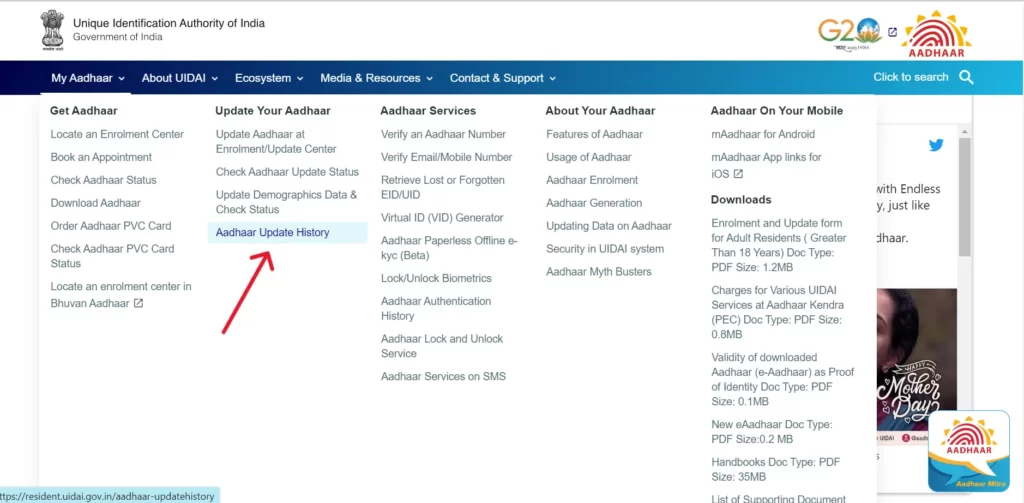
Step 2 — Navigate to “My Aadhaar” → “Update Aadhaar Online”
On the UIDAI homepage, find the My Aadhaar section. Under it, click Aadhaar Update History (or similar link).
Step 3 — Enter your Aadhaar number and captcha
Type your 12-digit Aadhaar number (or Virtual ID if you prefer) and the captcha code shown on screen.
Step 4 — Send OTP and verify
Click Send OTP. You will get a one-time password on the mobile number currently linked with your Aadhaar. Enter the OTP and press Submit.

Step 5 — View your update history
After verification, the page will show a list of update requests: each entry with URN, date, type of update, and status (completed/pending/rejected). You can expand entries for more details.
💾 How to Save / Download Your Aadhaar Update History
There’s no direct “download” button, but you can save a copy:
- After the history appears on screen, press Ctrl + P (or use browser menu → Print).
- Choose Save as PDF in the printer options.
- Save the file to your computer — name it something like
Aadhaar_Update_History_[YourAadhaar].pdf. - Or simply take screenshots and store them securely.
Always keep these PDFs/screenshots safe — they contain sensitive info.
🔎 Details You’ll See in the Update History
Each row or record typically contains:
- URN (Update Request Number) — unique to that update request
- Date & Time of the request
- Type (Demographic, Biometric, Mobile, OTP Authentication)
- Status (Completed / Rejected / Pending)
- Source (Online or Enrolment Centre)
- Occasionally remarks if the request was rejected or needs correction
This information helps you quickly trace and verify any change.
⚠️ Things to Remember When Checking Your Aadhaar Update History
- Mobile must be linked: You MUST have the phone number linked with Aadhaar to receive OTP.
- Only you can check: The history is private and requires your OTP; no one else can view it without your phone.
- No offline access: Aadhaar Seva Kendras cannot provide the history directly — you must use the UIDAI portal.
- Keep URNs safe: If you need a follow-up, note the URN from the history entry.
- Updates count: Some fields have a limit on how many times they can be changed in a year; know your update count before requesting another change.
🕒 How long does an update take to reflect?
- Online updates (where possible) are usually processed within a few hours to a few days.
- Update requests from centres may take up to 30 days depending on verification.
- If your update is still pending after the expected window, contact UIDAI support with the URN.
🔐 What to do if you find unauthorized updates?
- Note the URN and details of the unauthorized change.
- Immediately visit the UIDAI grievance page or call the UIDAI helpline.
- Lodge a complaint and provide the URN and screenshots/PDF.
- You may be advised to visit an Aadhaar Seva Kendra for in-person verification.
Act quickly — early reporting helps resolve issues faster.
✅ Quick Tips
- Always keep your mobile number secure and updated.
- Use strong passwords for email accounts linked to Aadhaar (if any).
- Regularly check update history — once every 6 months is a good practice.
- Save copies (PDF/screenshots) after every major update (address, name, biometrics).
📌 Frequently Asked Questions (FAQ)
🔚 Final Words
Your Aadhaar update history is a compact but powerful record — it protects you and helps keep your identity safe. Make it a habit to check the history occasionally, especially after any change (address, mobile, biometrics). If something looks wrong, act fast and contact UIDAI with the URN details.